Documentation
Nikolator
Tesla Coil Simulator
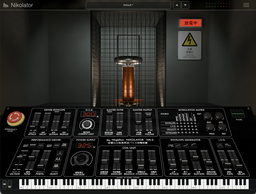
Overview
Nikolator is a software instrument that plays a Tesla coil. It uses no recordings. Play a key and the coil fires again and again; how fast it fires is the pitch. What you hear is computed from the discharge heating and expanding the air, and from that pressure travelling through a room to a microphone.
So the panel is mostly about the coil and its discharge rather than a synthesizer’s waveforms and levels. Raise the voltage and the discharge grows stronger; widen the plasma channel and the sound grows darker.
Quick start
System requirements
- macOS 10.15 or later on Intel, 11.0 or later on Apple Silicon. Standalone, AU and VST3
- Windows 10 (64-bit) or later. VST3 only (there is no standalone app)
Installation
| Format | Where it goes on macOS |
|---|---|
| AU | Nikolator.component in ~/Library/Audio/Plug-Ins/Components |
| VST3 | Nikolator.vst3 in ~/Library/Audio/Plug-Ins/VST3 |
| Standalone | Nikolator.app in /Applications |
On Windows, copy the whole Nikolator.vst3 folder to C:\Program Files\Common Files\VST3\. This build is unsigned, so SmartScreen may warn once. After installing, restart your DAW or rescan its plug-ins.
Making a sound in the standalone app
- Open the app.
- In Preferences (⌘,) on the menu bar, choose the audio output and the MIDI input device. The MIDI input starts out as “none”, so a MIDI keyboard plays nothing until one is chosen.
- Without a MIDI keyboard, ≡ → Virtual Keyboard gives you keys on screen.
The standalone app has no project to keep the sound in for you. Save anything you want to keep with ≡ → Preset → Save Preset As….
A first sound
Choose a preset from the preset field and play. BUS VOLTAGE, the large knob on the lower tier, sets the voltage: up for a stronger discharge, down for a weaker one.
Panel sections
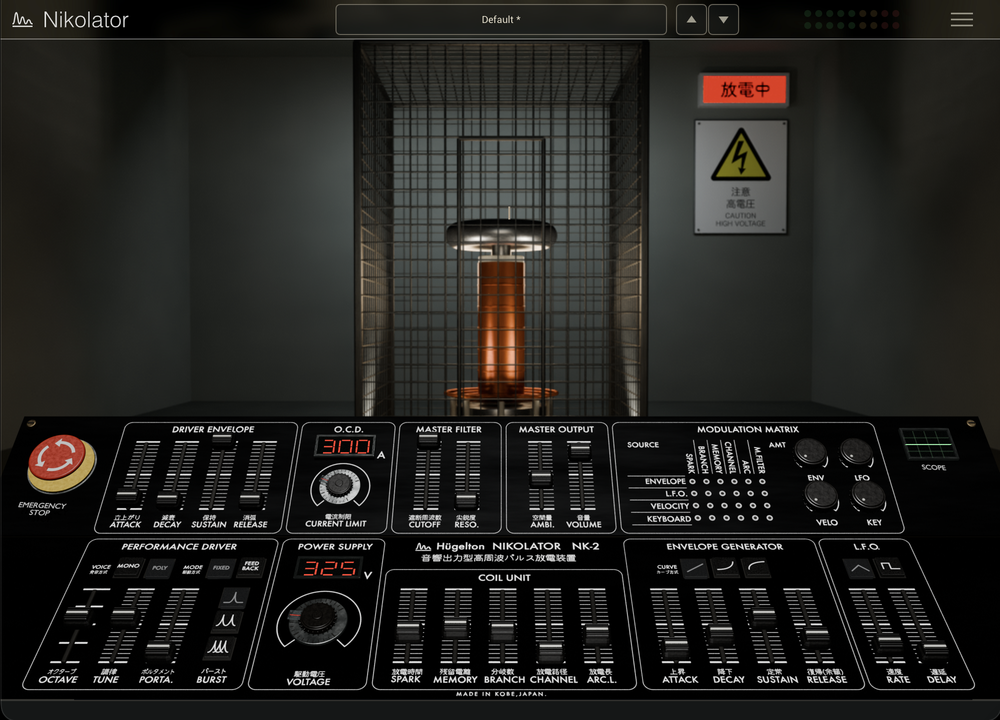
The panel has an upper and a lower tier. Click a section to jump to its description.
The tower
What fills the upper part of the window is not somewhere to work, it is somewhere to watch what is sounding. The coil discharges inside its cage, and the lightning runs on the same envelope as the sound; how far it reaches follows the streamer length being computed. What is on screen is what is being heard.
The discharge lamp to the right lights while the coil is firing, so it can be seen working at the edge of vision without watching the whole window. The band along the top of the window is lit by the same light.
Driver
The coil itself: what kind of machine it is, before anything is played on it. BUS VOLTAGE is the heart of how strong the discharge is, and CURRENT LIMIT is its ceiling. Over the limit, the coil rests until the current falls back. The two meters read those two values directly.
Oscillator is not a waveform. It chooses how many short pulses each discharge is split into; the total energy stays much the same and only its timing changes.
Drive envelope
How the energy sent to the coil changes over time. It is not a volume envelope: it moves the strength of the discharge itself.
Release starts at 0. A real coil stops discharging when its power is cut, and the tail comes naturally from the plasma channel cooling and from the room. For a gate-like sound, set attack 0, decay 0, sustain 100% and release 1ms.
Coil unit
The properties of the plasma channel. These change the discharge itself, not the sound after it.
The wider the Channel, the darker the whole instrument sounds: a wide source cannot radiate high frequencies well, so this control works like a filter.
Voice
How it is played.
In POLY, up to eight notes sound at once. OCTAVE has five steps, −2 to +2.
Filter and output
A valve low-pass filter, the room, and the overall level.
Modulation envelope
An envelope that exists only for the modulation matrix. On its own it changes nothing; it moves whatever the matrix connects it to.
EG Curve changes the shape of each stage without changing its time. EXP starts slowly and finishes fast; LOG is its mirror.
LFO
A repeating modulation source. It is shared by every voice, and starts from the beginning of its cycle when you play into silence.
Modulation matrix
A grid of pins connecting four sources (EG, LFO, velocity, key track) to six destinations (SPARK, BRANCH, MEMORY, CHANNEL, ARC, CUTOFF).
Each click on a pin moves it off → ON (red) → INV (blue, inverted); right-click returns it to off. How much each source does is set by the knob at the right of its row. Several sources connected to one destination add together and stop at the limit.
Emergency stop
Stops every discharge. Sounding notes and the room’s tail end on the spot.
While it is engaged, nothing new will sound — that is what makes it more than a mute. Releasing it does not bring back what was playing. It cannot be automated from a host (MIDI CC 3 does work).
Header and menu
The band along the top of the window and the ≡ menu are the same in every Hügelton plug-in.
| Where | What it does |
|---|---|
| Logo (left) | Click to open About |
| Preset field (center) | Click to open the preset list. Presets named “Category: Name” are grouped by category. Changing the sound after loading one adds * after its name |
| ▲ / ▼ (right of the preset field) | Previous / next preset. Stops at either end rather than wrapping |
| Level meter | Output level, left channel on the upper row and right on the lower. The red dot at the top means the output limiter is working |
| ≡ (right) | Opens the menu |
The ≡ menu
- About 〈product〉… — version and copyright
- Preset — Save Preset As… / Import Preset… / Reveal Presets Folder
- Settings — settings that belong to the product (see its own chapter)
- Virtual Keyboard — show or hide the on-screen keys (products without keys of their own)
- Window Scale — 75% / 100% / 125% / 150%
- Language — Automatic / English / 日本語 (only where a Japanese font is available)
Help and tooltips
Point at a control and its name and current value appear beside the pointer, while the strip along the bottom of the window says what it does. The keyboard band shows no bubbles: they would cover the hand that is playing.
Settings (≡ → Settings)
| Item | What it sets |
|---|---|
| Pitch Bend Range | How far pitch bend reaches: ±1 to ±24 semitones (±2 by default) |
| Mod Wheel | The parameter the mod wheel (CC 1) moves. LFO Amount by default; also Spark, Memory, Branch, Channel, Arc Length, Cutoff, Resonance, Filter Drive, Bus Voltage or Ambience |
Presets
The presets that come with the product (factory presets) are listed in the preset field. ≡ → Preset → Save Preset As… keeps the current sound as a preset of your own; your presets are listed after the factory ones.
Where they are kept:
| OS | Location |
|---|---|
| macOS | ~/Library/Audio/Presets/Hugelton/<Product>/ |
| Windows | %LOCALAPPDATA%\Hugelton\<Product>\Presets\ |
≡ → Preset → Reveal Presets Folder opens that folder in the Finder or Explorer. A preset someone has sent you comes in with Import Preset….
Init Preset, at the end of the list, returns every parameter to its default.
Virtual keyboard
So that the instrument can be played without a MIDI keyboard, keys can be shown on screen. ≡ → Virtual Keyboard shows or hides them. The window grows 40 pixels downwards; nothing in the panel moves.
| Where | Gesture |
|---|---|
| Keys | Click to play. Nearer the front of the key plays harder, nearer the tip softer. Drag across the keys for a glissando |
| Mouse wheel over the keys | Moves the range an octave at a time |
| Pitch bend (tall strip at the left) | Drag up or down; returns to center when released |
| Mod wheel (next to it) | Drag up or down (MIDI CC 1); stays where you leave it |
A note arriving from a MIDI keyboard or from a host track lights the same key. Whether the keyboard is shown is remembered across products.
MIDI
| CC | What it moves |
|---|---|
| 1 | The parameter chosen in Settings (LFO Amount by default) |
| 3 | Emergency stop (stops at 64 and above) |
| 5 | Portamento |
| 7 | Volume |
| 71 | Resonance |
| 74 | Cutoff |
Also note on / off (velocity is a modulation source), pitch bend, CC 64 (sustain pedal) and CC 120 / 123 (all sound off / all notes off).
A value moved from a MIDI controller shows on the panel but is not written to the host’s automation.
Troubleshooting
The standalone app plays nothing from my keyboard Check that a MIDI input device is chosen in Preferences (⌘,). It starts out as none.
Nothing sounds at all Check that the emergency stop is not at STOP. While it is engaged, nothing new will sound.
Nikolator does not appear in my DAW Check where it was installed, then restart the DAW or rescan its plug-ins.
Changelog
1.0.0
First release.
Licence
This software, its source code, artwork, documentation and accompanying materials are proprietary to Hügelton Instruments. They are not open source.
Anyone who has obtained a distributed binary from Hügelton Instruments, directly or through its store — by buying it, as a beta tester, or free of charge where the product is offered free — has a personal, non-transferable licence to install and use that binary. It conveys no rights to the source code and no right to redistribute the binary.
The software is provided as is, without warranty of any kind.
Third-party components
The software includes third-party code and typefaces, each under its own licence.
| Component | Used for |
|---|---|
| iPlug2 / Cockos WDL | The plug-in framework |
| Steinberg VST3 SDK | The VST3 format |
| NanoVG / NanoSVG / MetalNanoVG / fontstash | Drawing the editor |
| RtAudio / RtMidi | Audio and MIDI in the standalone |
| libpng / zlib / STB | Reading images and typefaces |
| Yoga | Layout |
| Khronos OpenGL declarations (glad) | OpenGL |
| nlohmann/json | Settings files |
| Roboto | The text typeface (Apache-2.0) |
Fukiai, the icon face, was drawn by Hügelton Instruments. It ships inside the product bundle and is not licensed for use outside it.
The full licence texts are inside the plug-in you have installed:
<Product>.vst3/Contents/Resources/LICENSE.txt
On macOS, right-click the plug-in and choose Show Package Contents to open it. The same file is in the .component and the .app. This chapter is the same thing made easier to read; it does not replace the texts.