Documentation
Trix
Circuit-modeled 1973 rhythm instrument
Overview
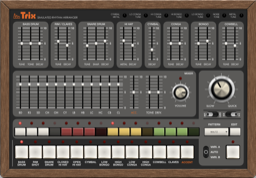
Trix is a rhythm instrument rebuilt in software from a 1973 Japanese rhythm machine, analysed from the hardware and its schematics. It uses no samples. Its twelve voices — bass drum, rim shot, snare, closed and open hi-hat, cymbal, two congas, two bongos, cow bell and claves — are each modeled on the original circuit and synthesized every time they play.
Rhythms are built with the sequencer inside it. There are 32 patterns: 24 factory rhythms (WALTZ, BOSSA NOVA, ROCK 1 to 6, SHUFFLE and more) and 8 USER slots of your own.
Quick start
System requirements
- macOS 11.0 or later, on Intel and Apple Silicon. Standalone, AU and VST3
- Windows 10 (64-bit) or later. VST3 only (there is no standalone app)
Installation
| Format | Where it goes on macOS |
|---|---|
| AU | Trix.component in ~/Library/Audio/Plug-Ins/Components |
| VST3 | Trix.vst3 in ~/Library/Audio/Plug-Ins/VST3 |
| Standalone | Trix.app in /Applications |
On Windows, copy the whole Trix.vst3 folder to C:\Program Files\Common Files\VST3\. This build is unsigned, so SmartScreen may warn once. After installing, restart your DAW or rescan its plug-ins.
Making a sound in the standalone app
- Open the app.
- In Preferences (⌘,) on the menu bar, choose the audio output. To play from a MIDI keyboard or follow an external MIDI clock, choose the MIDI input device as well (it starts out as “none”).
- Click a pad to play its instrument. Start / stop runs the sequencer. No MIDI device is needed.
In the standalone app, the patterns you programmed and the sound you shaped are gone when you quit. In a DAW, they are saved with the project.
To keep a pattern made in the standalone app, save it as a file on the shelf in the pattern editor that EDIT opens (see “Saving patterns” below).
A first sound
- Choose a factory rhythm with PATTERN — BOSSA NOVA, say.
- Press START / STOP. TEMPO sets the speed.
- Move the faders and listen to the voices change.
Panel sections
Click a section to jump to its description.
Voices
The faders that shape the twelve voices. As on the original machine, some voices share a circuit, so one fader moves two of them: rim shot and claves, the two congas, the two bongos, the two hi-hats.
Service trims
On the original machine these were trimmers set at the factory or on the bench. Use them to pull apart a pair of voices that share a circuit — to widen the gap between the low and high conga, for example. You can leave them alone.
Mixer
Level and stereo position for each voice.
Output
How strong the accent is, and the tone, drive and level of the whole instrument. Output Drive is how hard the output stage is pushed: the higher it goes, the more it saturates. When CLIP lights, the output is saturating.
Tempo and clock
With CLOCK at INT., the sequencer runs at the TEMPO setting (40-240 BPM), or at the DAW’s tempo when it follows the DAW. At EXT., it steps along with incoming MIDI clock.
The meter (4/4 · 3/4) is stored with each pattern. The factory waltz rhythms start in 3/4.
Sequencer
Programming
- Press an instrument pad. Its voice plays, and it becomes the track the step buttons edit. The thirteenth pad is the accent track.
- Program that track’s sixteen steps with the step buttons.
- Press another pad and program the next voice.
Variations
Each pattern has two variations, A and B. The VARI. lever plays A, B, or AUTO, which takes them in turn. The lamps above and below show which one is playing.
Pattern editor
EDIT opens an editor with every track against every step. Pattern length, the variations and the pattern shelf are there too.
Saving patterns
Patterns are saved with the DAW project. To keep one as a file of its own — one made in the standalone app, for instance — save it to the shelf in the pattern editor.
| OS | Location |
|---|---|
| macOS | ~/Library/Application Support/Hugelton/Trix/Patterns |
| Windows | %LOCALAPPDATA%\Hugelton\Trix\Patterns |
The old folder from 1.x is still listed, so nothing saved there has gone missing.
Menu
Menu and About
The menu button on the faceplate opens the menu. Clicking the wordmark printed on the faceplate opens About.
- About 〈product〉… — version and copyright
- Settings — settings that belong to the product (see “Settings” below)
- Window Scale — 75% / 100% / 125% / 150%
- Language — Automatic / English / 日本語 (only where a Japanese font is available)
Help and tooltips
Point at a control and its name and current state appear beside the pointer, while the strip along the bottom of the window says what it does. Pads, step buttons and lamps have them too.
Settings (CONFIG → Settings)
| Item | What it sets |
|---|---|
| MIDI Channel | The channel Trix listens on: OMNI (all channels) or 1 to 16. OMNI by default |
| Follow DAW Transport | Makes the DAW’s start and stop, tempo and song position drive the sequencer (MIDI CC 2 switches it too) |
| Follow MIDI Transport | Lets MIDI Start / Continue / Stop run the sequencer |
| Tooltips | Whether the bubble beside the pointer appears. Shared by every Hügelton plug-in |
The window size can also be changed by dragging the editor’s corner; it snaps to 75 / 100 / 125 / 150%.
MIDI
Notes
| Note | Voice | Note | Voice |
|---|---|---|---|
| 36 | Bass drum | 56 | Cow bell |
| 37 | Rim shot | 60 | High bongo |
| 38 | Snare | 61 | Low bongo |
| 42 | Closed hi-hat | 63 | High conga |
| 46 | Open hi-hat | 64 | Low conga |
| 47 | Accent | 75 | Claves |
| 49 | Cymbal |
Control change
All 56 parameters answer controllers the MIDI specification leaves undefined. The list is in the MIDI_CC.txt that comes with the product. Choose the channel with CONFIG → Settings → MIDI Channel.
A value moved from a MIDI controller shows on the panel but is not written to the DAW’s automation. In a DAW, its own automation and MIDI learn are the better route.
Clock and transport
With CLOCK at EXT., Trix steps along with MIDI clock (F8). With Follow MIDI Transport on, Start / Continue / Stop (FA / FB / FC) run the sequencer.
Sound presets
Eight presets hold the sound only, and are chosen from the DAW’s preset (program) list. They carry no patterns, so choosing one never changes the rhythm you programmed.
Troubleshooting
The standalone app plays nothing from my MIDI keyboard Check that a MIDI input device is chosen in Preferences (⌘,) — it starts out as none — and that CONFIG → Settings → MIDI Channel matches the sending channel.
START / STOP does nothing Check that CLOCK is not at EXT. At EXT. the sequencer waits for MIDI clock.
My pattern was gone after I quit the standalone app The standalone app does not keep patterns when it quits. Save them as files on the shelf in the pattern editor.
Trix does not appear in my DAW Check where it was installed, then restart the DAW or rescan its plug-ins.
Changelog
1.3.0 — 2026-09-08
Moved onto the shared Hügelton plug-in library. The voices, the sequencer, the pattern format, the parameter numbering and the MIDI CC map are unchanged, and sessions and pattern files written by 1.x load exactly as before.
- One menu, in your computer’s own hand. The CONFIG button at the top right of the faceplate is where it always was and still opens the menu, but the menu is now the system’s rather than one Trix drew for itself: ticks show what is set, and the keyboard drives it like any other menu. It holds About, Settings (MIDI Channel, Follow DAW Transport, Follow MIDI Transport, Tooltips), Window Scale and Language. Clicking the engraved wordmark opens About as well.
- Follow DAW Transport is in the menu, under Settings, as well as being a plug-in parameter on MIDI CC 2.
- A help line under the faceplate. Hovering a control writes one sentence at the bottom of the window saying what it does. In English and Japanese; the editor follows the system language, and the CONFIG menu offers Language when the machine has a typeface that can draw Japanese.
- A hover bubble on every control. Name and current value, following the pointer, staying put while a fader is being pulled. Switches, lamps, pads and step buttons have one too.
- Patterns are kept in
~/Library/Application Support/Hugelton/Trix/Patternson macOS and%LOCALAPPDATA%\Hugelton\Trix\Patternson Windows, the folder every Hügelton plug-in shares. The old folder is still read, so nothing you saved has disappeared from the LOAD menu; anything you save from now on is written to the new one. - The Windows build now carries its typeface, so the readouts, the bubble and the help line draw there the way they do on macOS.
2026-08-24
- A/B confirmation LEDs around the variation selector; AUTO follows the active variation as the pattern plays.
- External MIDI clock separated from realtime transport control: CLOCK ONLY keeps START/STOP manual or DAW-controlled, while FOLLOW responds to FA, FB, FC and a first-F8 fallback.
- Independent DAW transport following, mixer pan controls and a dedicated CONFIG panel.
Terms of use
This software, and everything that ships with it — presets, images, sounds, typefaces, documentation — is the work of Hügelton Instruments. Copyright belongs to Hügelton Instruments. It is not open source.
Buying it, or taking part in a beta, gives you a personal, non-transferable right to install and use it on your own equipment. That is all it gives you.
The following are strictly prohibited:
- Reverse engineering, decompiling, disassembling or otherwise analysing it
- Redistribution, whether paid or free, in whole or in part
- Resale, lending or transfer
- Taking any bundled asset — images, sounds, presets, typefaces, documentation — and using it outside this software
- Circumventing licensing or protection
The software comes as it is. There is no warranty on how it works or what it produces.