Documentation
Kepra
Circuit-modeled rhythm instrument
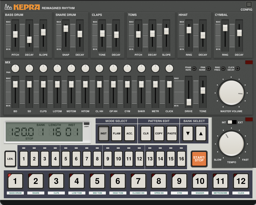
Overview
Kepra is a rhythm instrument built by analysing a classic Japanese programmable rhythm machine. Rather than playing recordings, it rebuilds how each instrument behaves from the original analog circuits and from measured waveforms.
There are twelve instruments — bass drum, click, snare, claps, shaker, low, mid and high tom, closed and open hi-hat, metronome and cymbal. A 16-step sequencer is built in, with eight banks, three layers (note, flam and accent) and patterns of variable length.
Quick start
System requirements
- macOS 10.15 or later on Intel, 11.0 or later on Apple Silicon. Standalone, AU and VST3
- Windows 10 (64-bit) or later. VST3 only (there is no standalone app)
Installation
| Format | Where it goes on macOS |
|---|---|
| AU | Kepra.component in ~/Library/Audio/Plug-Ins/Components |
| VST3 | Kepra.vst3 in ~/Library/Audio/Plug-Ins/VST3 |
| Standalone | Kepra.app in /Applications |
On Windows, copy the whole Kepra.vst3 folder to C:\Program Files\Common Files\VST3\. This build is unsigned, so SmartScreen may warn once. After installing, restart your DAW or rescan its plug-ins.
Making a sound in the standalone app
- Open the app.
- In Preferences (⌘,) on the menu bar, choose the audio output. To play from a MIDI keyboard or follow an external MIDI clock, choose the MIDI input device as well (it starts out as “none”).
- Click a pad to play its instrument. Start / stop runs the sequencer. No MIDI device is needed.
In the standalone app, the patterns you programmed and the sound you shaped are gone when you quit. In a DAW, they are saved with the project.
To keep a pattern made in the standalone app, export it as a MIDI file (see “Exporting a pattern as MIDI” below). A file written that way cannot be loaded back into Kepra.
A first sound
- Select the bass drum with its instrument pad and press step buttons 1, 5, 9 and 13.
- Press start / stop. The tempo knob sets the speed.
- Select another pad and layer the snare and hi-hats on top.
Panel sections
Click a section to jump to its description.
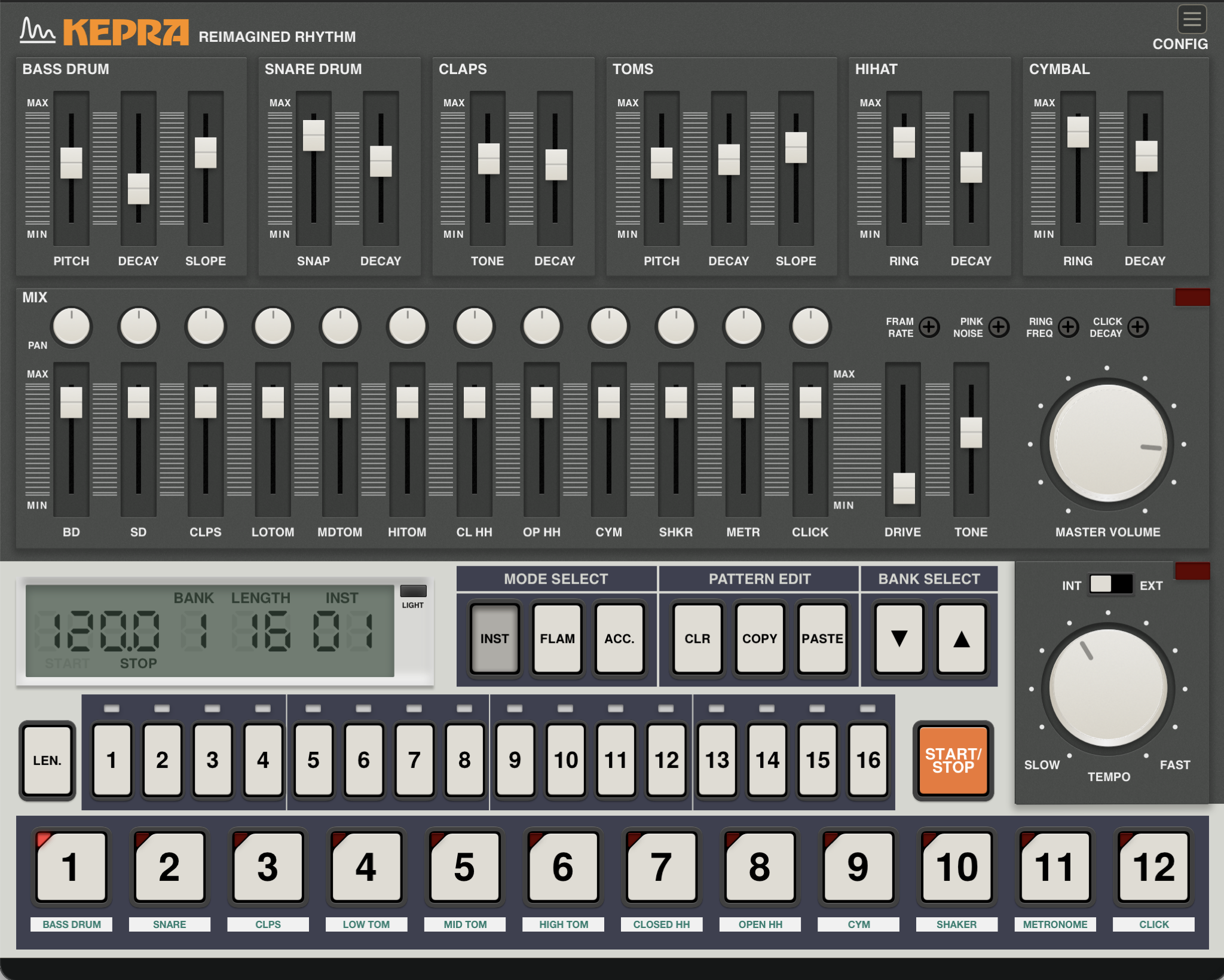
Voices
The faders that shape the instruments. The three toms are tuned together and keep their intervals. The closed hi-hat stays short; only the open hi-hat’s length changes.
Global character
Knobs for what several instruments share. The snare, claps, hi-hats and cymbal are built from one noise source, and the hi-hats and cymbal from one metallic ring.
Mixer
Stereo position and level for each instrument.
Output
Drive, brightness and level for the whole mix. When the clip lamp lights, the output stage is running out of headroom.
Sequencer
Programming
- Press an instrument pad. The instrument plays, and it becomes the one the step buttons edit.
- INST / FLAM / ACC. chooses the layer the step buttons write: the note itself, a flam (the note played as two quick hits), or an accent.
- Program the sixteen steps with the step buttons.
The spacing between a flam’s two hits is set for every instrument at once by the flam knob under “Global character”.
Pattern length and banks
- Press LEN., then a step button: that bank now repeats after that many steps. While LEN. is held, the LCD’s LENGTH legend reads SET LEN.
- There are eight banks, stepped through with the ▼ / ▲ pair (▼ back, ▲ on). These two buttons carry no text. While playing, the change happens at the start of the next bar.
- CLR / COPY / PASTE act on the selected instrument’s pattern only. What you copy can be pasted onto another instrument or into another bank.
LCD
Shows the tempo, plus BANK, LENGTH (the pattern length) and INST (the selected instrument). LENGTH reads SET LEN while LEN. is held.
The LCD’s INST is the number of the selected instrument. It is not the INST button that chooses a layer.
Pads, transport and tempo
With the clock switch at INT, the sequencer runs at the tempo knob’s setting (40-240 BPM). At EXT it steps along with incoming MIDI clock, and the LCD shows the tempo that clock implies. The tempo lamp flashes on every quarter note.
Exporting a pattern as MIDI
Drag the LCD into a DAW track or a Finder window, and one bar of the selected bank becomes a MIDI file. ≡ → Settings → Export Current Pattern as Standard MIDI… does the same.
- On MIDI channel 10, at the sequencer’s tempo
- Accented steps at velocity 127, the rest at 99
- Flammed steps written an octave above the instrument’s note
A file made by dragging is first written to ~/Library/Application Support/Hugelton/Kepra/Export.
Menu
Menu and About
The menu button on the faceplate opens the menu. Clicking the wordmark printed on the faceplate opens About.
- About 〈product〉… — version and copyright
- Settings — settings that belong to the product (see “Settings” below)
- Window Scale — 75% / 100% / 125% / 150%
- Language — Automatic / English / 日本語 (only where a Japanese font is available)
Help and tooltips
Point at a control and its name and current state appear beside the pointer, while the strip along the bottom of the window says what it does. Pads, step buttons and lamps have them too.
Settings (≡ → Settings)
| Item | What it sets |
|---|---|
| DAW Transport | Manual (run from the panel’s start / stop) or Follow (start and stop with the DAW) |
| MIDI Transport | Clock Only (use MIDI clock for its speed only) or Follow (MIDI Start / Continue / Stop run it too) |
| MIDI Clock | Whether MIDI clock is arriving (Receiving / Waiting) |
| Export Current Pattern as Standard MIDI… | See “Exporting a pattern as MIDI” above |
Kepra has no presets. Its sound and its patterns are saved with the DAW project.
MIDI
Notes
Any channel. Velocity reaches the sound.
| Note | Instrument | Note | Instrument |
|---|---|---|---|
| 36 | Bass drum | 42 | Closed hi-hat |
| 37 | Click | 43 | Mid tom |
| 38 | Snare | 44 | Open hi-hat |
| 39 | Claps | 45 | High tom |
| 40 | Shaker | 46 | Metronome |
| 41 | Low tom | 47 | Cymbal |
Notes 48-59 play the flam version of the instrument an octave below.
Control change
| CC | Parameter | CC | Parameter |
|---|---|---|---|
| 7 | Master Volume | 24 | Toms Decay |
| 16 | Global Flam Rate | 25 | Claps Tone |
| 17 | Global Pink Noise | 26 | Claps Decay |
| 18 | Global Ring Frequency | 27 | Hi-Hat Ring |
| 19 | Bass Drum Pitch | 28 | Hi-Hat Decay |
| 20 | Bass Drum Decay | 29 | Cymbal Ring |
| 21 | Snare Drum Snap | 30 | Cymbal Decay |
| 22 | Snare Drum Decay | 31 | Master Drive |
| 23 | Toms Pitch | 71 | Master Tone |
Values 0-127 cover each parameter’s full range. A value moved from a MIDI controller shows on the panel but is not written to the DAW’s automation. For the other parameters, use your DAW’s MIDI learn.
Clock and transport
With the clock switch at EXT, Kepra steps along with MIDI clock (F8, 24 pulses per quarter note). With ≡ → Settings → MIDI Transport at Follow, Start / Continue / Stop (FA / FB / FC) run the sequencer. Kepra does not send MIDI.
Troubleshooting
Start / stop does nothing Check that the clock switch is not at EXT. At EXT the sequencer waits for MIDI clock; ≡ → Settings → MIDI Clock shows whether any is arriving.
Kepra does not run when the DAW plays Set ≡ → Settings → DAW Transport to Follow. At Manual, the panel’s start / stop runs it.
My pattern was gone after I quit the standalone app The standalone app does not keep patterns when it quits. Export the ones you want to keep as MIDI files before closing it.
Kepra does not appear in my DAW Check where it was installed, then restart the DAW or rescan its plug-ins.
Changelog
1.3.0 — 2026-09-08
Kepra moves onto the shared Hügelton plug-in library, so the window, the help text and the menu behave the way they do in every other Hügelton instrument. The sound, the parameters, the MIDI CC map and the sequencer’s pattern format are unchanged, and sessions saved with 1.x open as they did.
- The ≡ menu. The button moulded into the faceplate at the top right, where CONFIG used to be, opens the shared Hügelton menu: About, Settings, Window Scale and Language. Kepra has no presets — its sound is its patterns, and patterns belong to the session — so it wears no header band and the window is the artwork plus the help line, nothing else.
- Export a pattern as MIDI. Drag the LCD into a DAW track or a Finder window, or use Settings ▸ Export Current Pattern as Standard MIDI… in the ≡ menu. The file is one bar of the selected bank on MIDI channel 10, at the sequencer’s tempo, with accents as velocity and flams an octave above.
- Transport settings moved. DAW Transport, MIDI Transport and the MIDI clock readout are now under Settings ▸ in the ≡ menu. They do the same things.
- A help line under the panel. Hovering a control writes one sentence about what it does along the bottom of the window. In Japanese where a Japanese system font is available.
- The hover bubble works. 1.2.1 shipped it disabled because it left ghosts behind as it moved. The shared one repaints the whole editor, so it cannot.
- The window opens at 100%, with 75 / 100 / 125 / 150 % in the ≡ menu. 1.2.1 opened at 85% and could only be 42.5% or 85%. The chosen size is saved with the session; a new instance opens at 100%.
- About. The ≡ menu and the wordmark printed on the faceplate both open it. Click outside to close.
- Language. Automatic / English / 日本語 in the ≡ menu, offered when the system has a font that can draw Japanese. The choice is remembered for every Hügelton plug-in at once, not per session.
- No licence check. Kepra no longer contains the activation client. The itch.io purchase is the only gate; nothing is written to disk or sent anywhere, and there is no machine limit.
- The standalone application is part of the release again, beside the AU and the VST3.
- Pattern MIDI staged for a drag now goes to
~/Library/Application Support/Hugelton/Kepra/Exportrather than the system temporary directory.
1.2.1 — 2026
MIDI transport follow separated from MIDI clock.
Releases between 1.0.0 F and 1.2.1 went out on itch.io without changelog entries of their own; the two dated lines below are what installer/changelog.txt recorded.
1.0.0 F — 2026-07-02
Beta with integrated sequencer and revised LCD.
0.1.0 — 2026-06-26
Initial release.
Terms of use
This software, and everything that ships with it — presets, images, sounds, typefaces, documentation — is the work of Hügelton Instruments. Copyright belongs to Hügelton Instruments. It is not open source.
Buying it, or taking part in a beta, gives you a personal, non-transferable right to install and use it on your own equipment. That is all it gives you.
The following are strictly prohibited:
- Reverse engineering, decompiling, disassembling or otherwise analysing it
- Redistribution, whether paid or free, in whole or in part
- Resale, lending or transfer
- Taking any bundled asset — images, sounds, presets, typefaces, documentation — and using it outside this software
- Circumventing licensing or protection
The software comes as it is. There is no warranty on how it works or what it produces.